
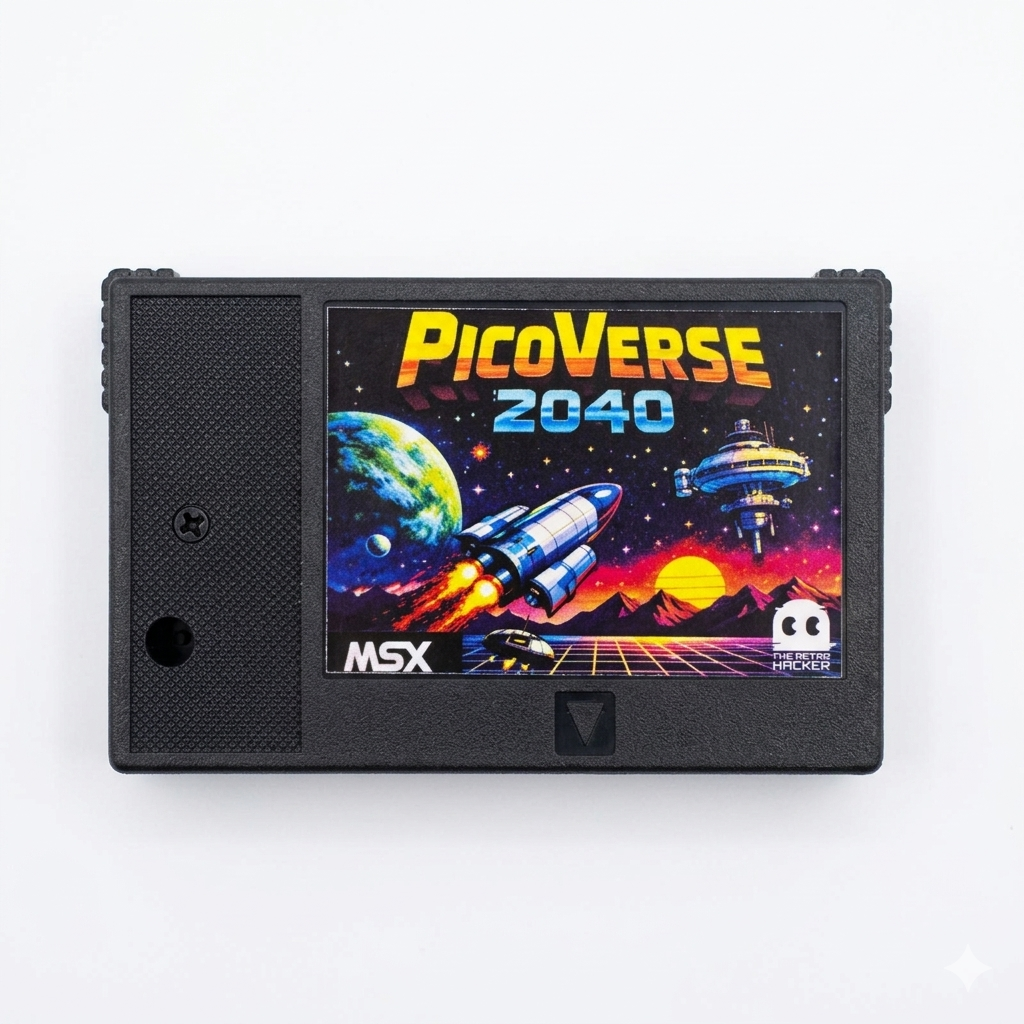
If you own an MSX computer, you know the routine: one cartridge for games, another for storage, another for MIDI, and before long you are spending more time swapping hardware than actually using your machine. The PicoVerse 2040 is an open-source MSX cartridge that replaces all of that with a single board. It plugs into the standard MSX cartridge slot and, depending on the firmware you flash to it, can act as a multi-game ROM launcher, a Nextor hard disk, a USB keyboard adapter, a MIDI interface, a joystick adapter, or several other things.
The “2040” in the name refers to the RP2040 microcontroller inside, the same chip found in the Raspberry Pi Pico. It is inexpensive, widely available, and fast enough to keep up with the MSX bus in real time. The cartridge PCB connects the RP2040 directly to the MSX address, data, and control lines, and the firmware uses PIO (Programmable I/O) state machines to respond to bus cycles at hardware speed.
This article is a practical guide to what the PicoVerse 2040 can do, how to build one, and how to use it. It is written for the average MSX user who wants to understand the cartridge without having to read through the entire technical documentation.
What can it do?
The PicoVerse 2040 is not a fixed-function cartridge. It is a platform. By flashing different firmware images (UF2 files), the same physical cartridge can become:
| Mode | What it does |
|---|---|
| MultiROM | Stores up to 128 ROM images in flash. On power-up, a text-mode menu lets you pick which game or application to run. |
| LoadROM | Boots a single ROM instantly on power-up, like a dedicated game cartridge. |
| Nextor (Sunrise IDE) | Emulates a Sunrise IDE interface. Plug a USB flash drive into the cartridge and the MSX boots Nextor DOS from it. |
| Nextor + Mapper | Same as above, but adds 192KB of mapper RAM for programs that need it. |
| USB Keyboard | Turns the cartridge into a USB-to-MSX keyboard bridge. Plug in a standard USB keyboard and type. |
| MSX-MIDI | Emulates the standard MSX-MIDI interface. Plug in a USB-MIDI cable and use MSX MIDI software directly. |
| MIDI-PAC | Passively listens to the PSG sound chip and converts the music into a real-time MIDI stream sent to a USB MIDI device. |
| USB Joystick | Makes USB gamepads (HID, Xbox 360, Xbox One, Xbox Series X|S) work as native MSX joysticks. |
All of these modes are generated from the same two PC tools: `multirom.exe` and `loadrom.exe`. You run one of them on your Windows PC, it produces a UF2 file, and you copy that file to the cartridge. That is the entire workflow.
What you need to build one
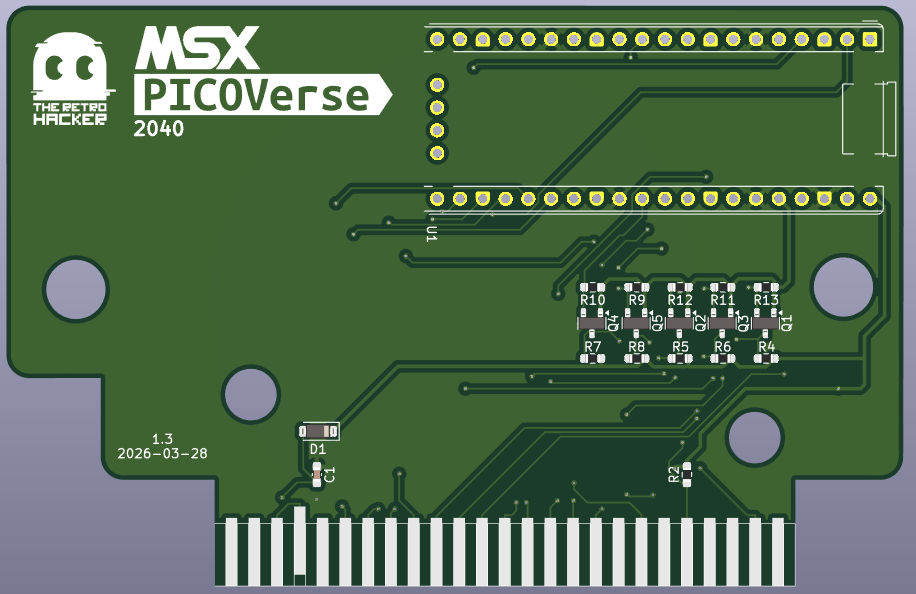
The PicoVerse 2040 is a small surface-mount PCB that fits inside a standard MSX cartridge shell. It uses an RP2040 development board as the core module, so you do not need to solder a bare RP2040 chip. The dev board plugs into pin headers on the cartridge PCB.
Bill of materials
| Reference | Description | Quantity | Link |
|---|---|---|---|
| U1 | RP2040 Dev Board 30 GPIO pins exposed | 1 | AliExpress |
| C1 | 0603 0.1 µF Ceramic Capacitor | 1 | AliExpress |
| C2 | 0603 10 µF Ceramic Capacitor | 1 | AliExpress |
| R2, R3, R4, R5, R6, R7, R8, R9, R10, R11, R12, R13 | 0603 10 kΩ Resistor | 12 | AliExpress |
| R1 | 0603 2 KΩ Resistor | 1 | AliExpress |
| D1 | 1N5819 SOD-123 Diode | 1 | AliExpress |
| Q1, Q2, Q3, Q4, Q5 | BSS138 SOT-23 Transistor | 5 | AliExpress |
The Gerber files and interactive BOM are available in the hardware folder of the project repository. All components are standard parts available from AliExpress, LCSC, or Mouser.
Assembly
The PCB is designed for reflow soldering, but the SMD parts (0603 resistors and capacitors, SOT-23 MOSFETs, SOD-123 diode) are large enough for hand soldering with a fine tip. The RP2040 dev board is soldered to two rows of pin headers. No through-hole components are needed except the headers.
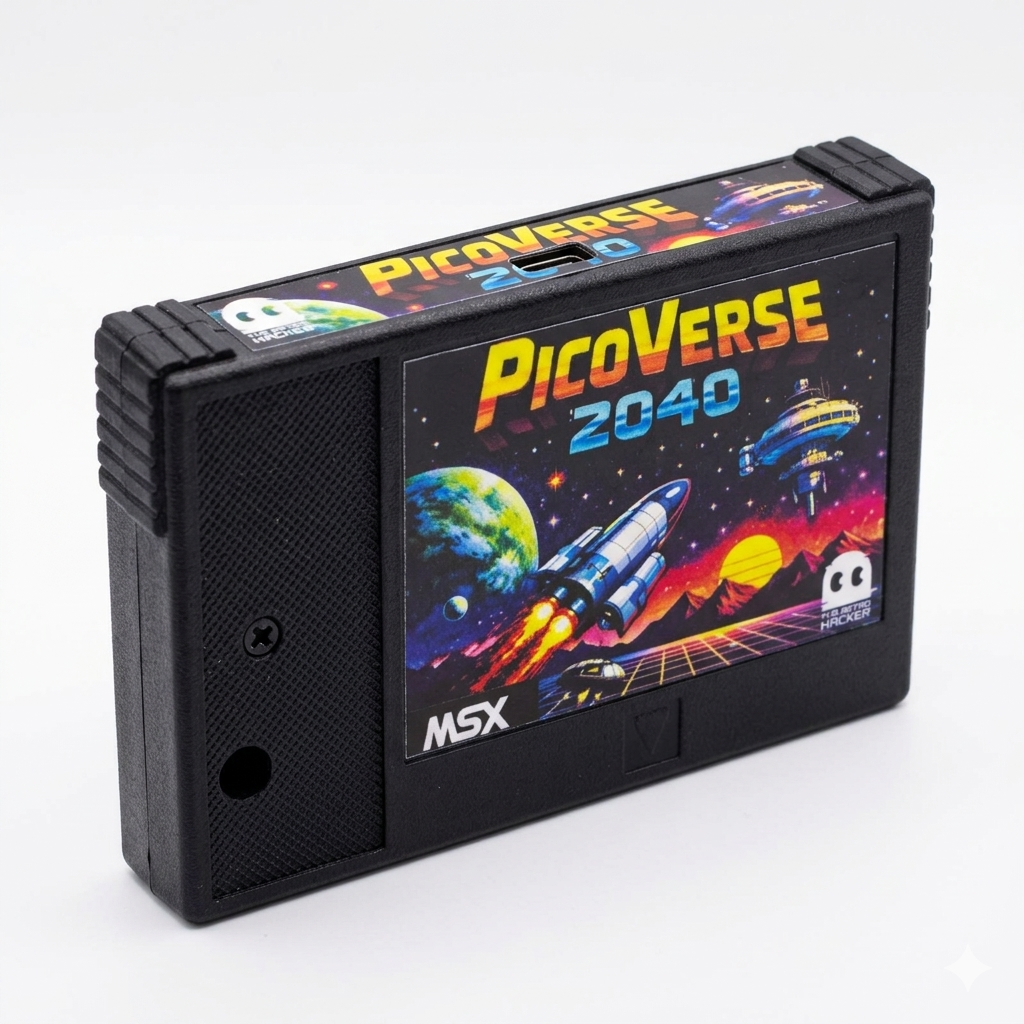
Once assembled, the PCB drops into a standard MSX cartridge shell with the MSX edge connector at the bottom and the USB-C port accessible from the top.
PCB origins: from prototype to production
The very first PicoVerse prototype was a hand-wired affair on a universal MSX cartridge board:
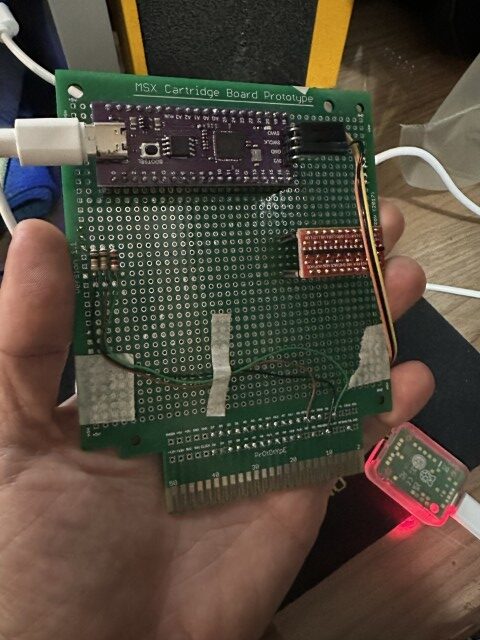
From this starting point, the project moved to dedicated PCBs with proper level shifting and a clean layout. The current v1.3 board is production-ready and has been tested across many MSX models.
How to flash the cartridge
Flashing the PicoVerse 2040 is the same as flashing any RP2040 board:
- Enter BOOTSEL mode: Use a paperclip or a small tool to press the BOOTSEL button through the hole on the back of the cartridge while connecting the USB-C cable to your PC. The cartridge appears as a USB drive called
RPI-RP2.
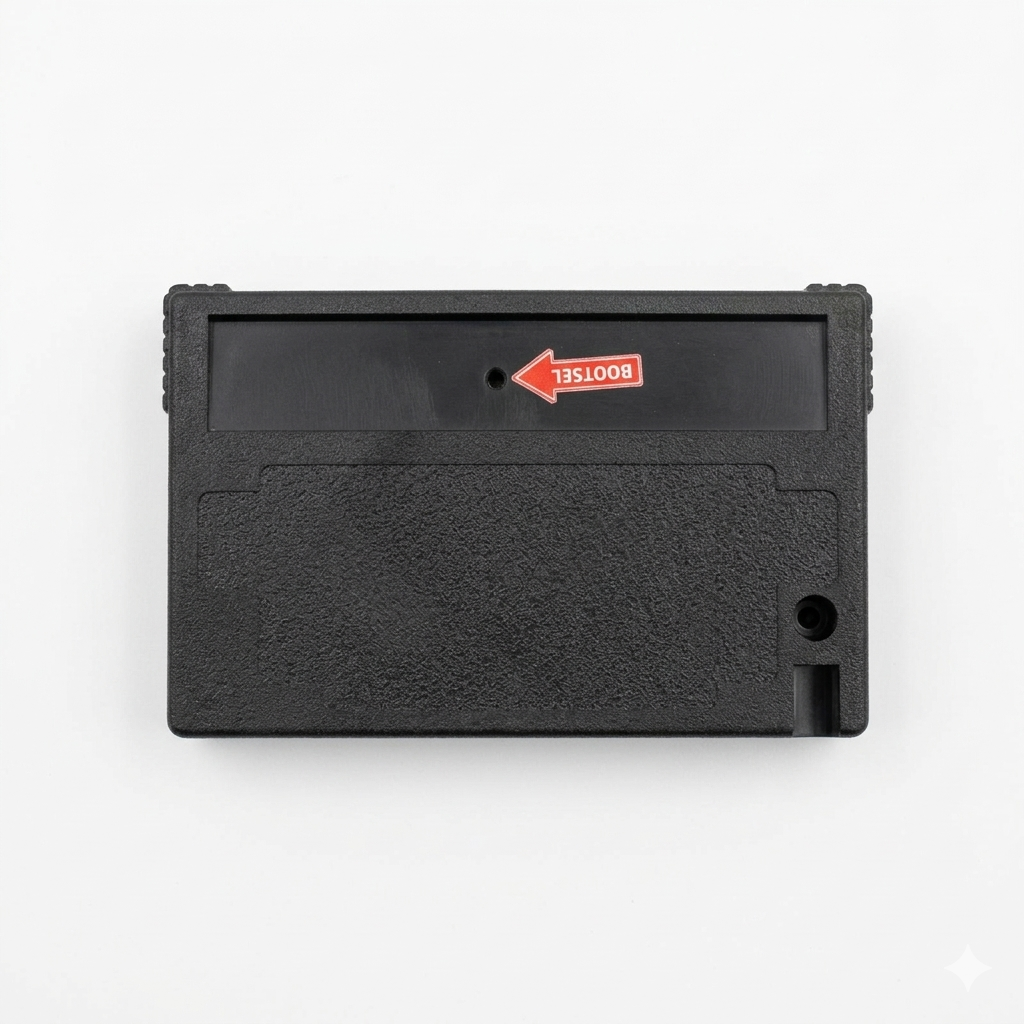
- Copy the UF2 file: Drag the
.uf2file onto theRPI-RP2drive. The cartridge reboots automatically with the new firmware. - Insert into your MSX: Put the cartridge in any cartridge slot and power on.
That is it. No special programmer, no JTAG, no drivers. If you want to change what the cartridge does, just repeat the process with a different UF2 file.
MultiROM: a curated game library on one cartridge
MultiROM mode is probably what most users will use first. It lets you put up to 128 ROM images into a single firmware file, and on boot your MSX shows a menu where you pick what to run.
Building a MultiROM image
- Create a folder on your PC and copy your
.ROMfiles into it. - Open a command prompt in that folder and run
multirom.exe. - The tool scans the ROMs, auto-detects the mapper type for each one, and builds a single
multirom.uf2file. - Flash the UF2 to the cartridge as described above.
The tool output shows what it detected for each file:
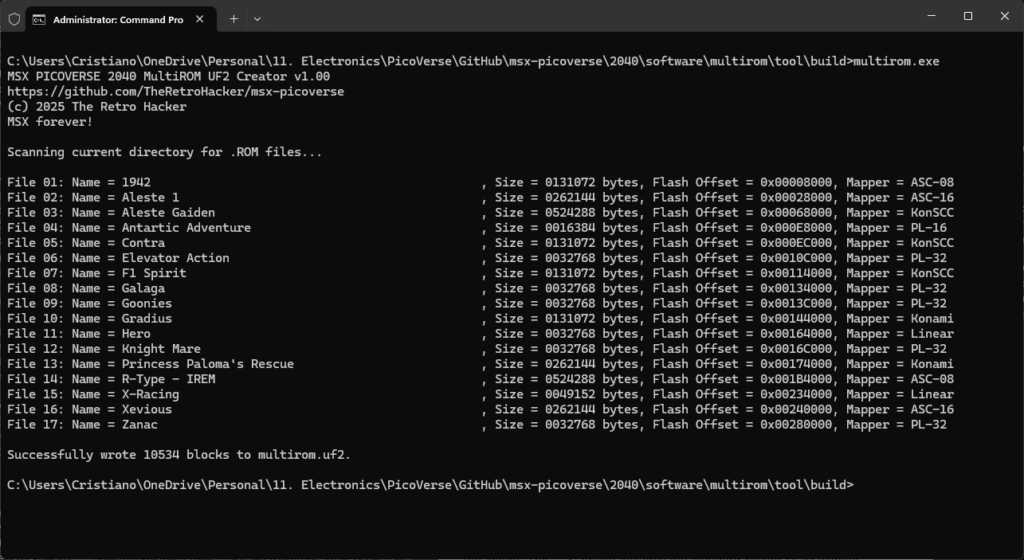
The on-screen menu
On the MSX side, the menu shows each ROM with its name, size in KB, and detected mapper type. You navigate with the arrow keys and press Enter or Space to launch.
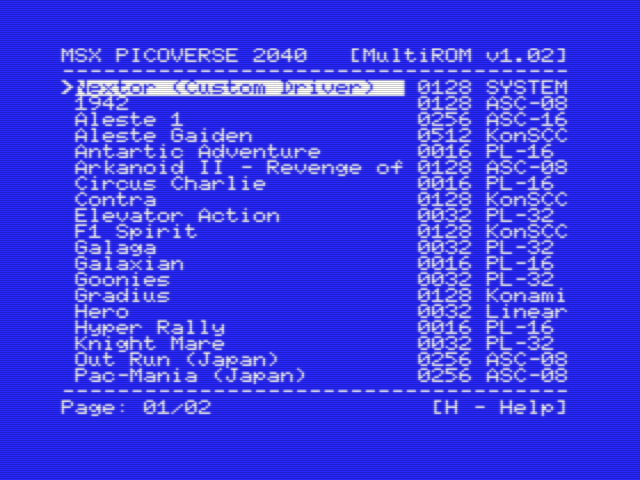
The menu supports:
- Up/Down arrows to move through the list
- Left/Right arrows to move between pages
- Enter or Space to launch the selected ROM
- H for the help screen
- C for the configuration screen
- Automatic horizontal scrolling for names longer than the display width
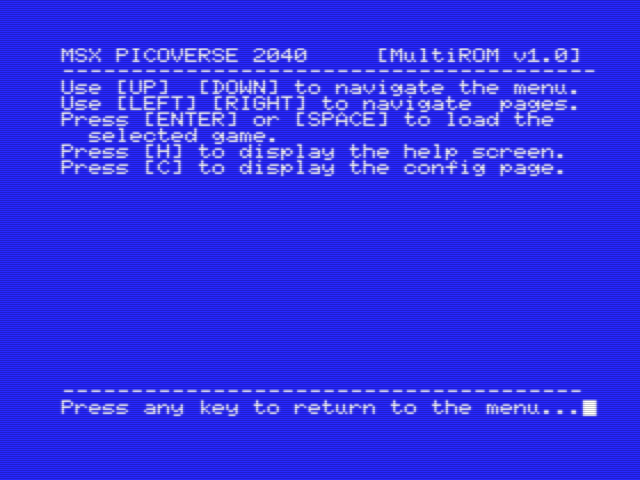
Mapper auto-detection and forcing
The tool includes an embedded SHA-1 database derived from openMSX, so well-known ROMs are detected with high accuracy. For titles that cannot be identified by SHA-1 hash, the tool falls back to heuristic analysis of the ROM header and content.
If auto-detection gets it wrong (or if you want to override it), you can force the mapper by adding a tag to the filename before the .ROM extension. For example:
Aleste Gaiden [KonSCC].ROM— forces Konami SCC mapperMy Game [ASC-08].ROM— forces ASCII 8KB mapper
The full list of supported mapper tags:
| Tag | Mapper | Description |
|---|---|---|
PLA-16 | Planar 16KB | Small plain ROMs (up to 16KB) |
PLA-32 | Planar 32KB | Plain ROMs (up to 32KB) |
PLN-48 | Planar 48KB | Linear mapped (48KB) |
PLN-64 | Planar 64KB | Linear mapped (64KB) |
KonSCC | Konami SCC | Konami with SCC sound chip mapper |
Konami | Konami | Konami without SCC |
ASC-08 | ASCII 8KB | ASCII 8KB banked mapper |
ASC-16 | ASCII 16KB | ASCII 16KB banked mapper |
ASC-16X | ASCII 16KB Extended | For titles like NOP Asteroids and Neon Horizon (MSXDEV) |
NEO-8 | NEO 8KB | Large ROMs using 8KB banking |
NEO-16 | NEO 16KB | Large ROMs using 16KB banking |
MANBW2 | Manbow2 | Space Manbow 2 — includes AMD flash emulation for saves |
Adding a Nextor SYSTEM entry to MultiROM
MultiROM can also include Nextor as a selectable menu entry alongside your ROMs. Use the -s flag when building:
multirom.exe -sThis adds a “Nextor” entry at the top of the menu. When selected, the cartridge switches to Sunrise IDE mode and boots Nextor from the USB flash drive. You can also use -m to include mapper RAM with Nextor.
LoadROM: one game, instant boot
LoadROM mode is the simplest path: one ROM goes in, one UF2 comes out, and the MSX boots directly into that ROM on power-up. No menu, no keypresses.
loadrom.exe MyGame.ROMThis produces a loadrom.uf2 that you flash to the cartridge. On the next MSX boot, the game starts immediately.
LoadROM supports ROMs from 8 KB up to the full 16 MB flash capacity. It uses the same mapper detection and forcing rules as MultiROM.
Nextor and Sunrise IDE: USB storage for your MSX
One of the most useful modes turns the PicoVerse 2040 into a Sunrise IDE-compatible Nextor disk interface. Plug a USB flash drive into the cartridge’s USB-C port, and the MSX boots into Nextor DOS with full disk access.
The cartridge emulates:
- Sunrise FlashROM banking for the 128KB Nextor kernel (8 pages of 16KB)
- IDE task-file registers in the standard Sunrise address ranges
- ATA sector read/write commands translated to USB Mass Storage operations
From the MSX’s perspective, it looks exactly like a real Sunrise IDE cartridge with a hard disk attached. Nextor handles FAT16/FAT12 partitions, so you can format the USB drive on your PC and move files back and forth.
Nextor with memory mapper
The -m option adds 192KB of mapper RAM (12 pages of 16KB) alongside the Nextor interface. This is needed for some MSX-DOS 2 programs and utilities that require a memory mapper to function. The mapper uses proper expanded-slot semantics with subslot registers, and the mapper ports (FC–FF) respond correctly to Nextor’s initialization probes.
Tips for USB drives
- Start with a small, well-known USB flash drive. Not all USB controllers behave identically.
- Format with a single FAT16 partition for maximum compatibility.
- If a drive is not detected, try a different brand before debugging the cartridge.
USB keyboard mode
In keyboard mode, the PicoVerse 2040 turns into a USB-to-MSX keyboard bridge. Plug a standard USB keyboard into the USB-C port and it appears as the native MSX keyboard — all 11 rows of the keyboard matrix are fully mapped, including function keys, cursor keys, numpad, and MSX-specific keys (GRAPH, CODE, SELECT, STOP).
This mode is generated with:
loadrom.exe -kKey features:
- Works with any USB HID keyboard, including through USB hubs
- Supports up to 6 simultaneous keypresses plus modifiers
- No MSX-side software or driver needed
Important: This mode only works on original MSX hardware with a discrete PPI chip. It is not compatible with FPGA-based MSX systems (OCM, 1chipMSX, Zemmix Neo, etc.) or MSX computers where the PPI is integrated into a custom chip (e.g. Panasonic models with T9769 MSX-ENGINE).
MSX-MIDI mode
MSX-MIDI mode emulates the standard MSX-MIDI interface found in the Panasonic FS-A1GT turbo R. Plug a USB-MIDI cable (for example, connected to a Roland Sound Canvas) into the USB-C port and MSX MIDI software works out of the box.
loadrom.exe -iThe cartridge responds on I/O ports E8–EF with proper 8251 USART emulation. Both sending and receiving MIDI data are supported, so bidirectional communication with MIDI devices works. Tested with MIDI players like MIDRY.
MIDI-PAC: hear your PSG music through a real synthesizer
MIDI-PAC mode is something different. Instead of sending MIDI to the MSX, it listens to what the MSX is already playing through its PSG (AY-3-8910 or YM2149) and converts that into a MIDI stream sent to a connected USB MIDI device.
loadrom.exe -pPlug in a USB MIDI cable connected to a Sound Canvas module (or any General MIDI synth), start a game, and hear the PSG music rendered through real MIDI instruments. The conversion engine runs at 50 Hz with coherent frame-based analysis, vibrato expressed as pitch bend instead of note retriggers, noise-to-percussion mapping with 6 frequency bands, and SFX jump detection for clean handling of sound effects and arpeggios.
The result is genuinely musical — familiar PSG tunes from Konami, Compile, and other classic MSX publishers sound surprisingly good through a Sound Canvas.
USB joystick mode
The joystick firmware lets you use modern USB gamepads on your MSX:
loadrom.exe -jPlug a USB gamepad into the USB-C port and it appears as one or two native MSX joysticks. Supported controllers include generic USB HID gamepads, Xbox 360, Xbox One, and Xbox Series X|S. USB hubs are supported for connecting two gamepads at once (one per MSX joystick port).
The firmware uses an open-drain bus driving technique that coexists with the real PSG chip, so MSX sound output is completely unaffected.
Important: Like the keyboard mode, this does not work on FPGA-based MSX systems or machines with an integrated PSG.
How it works under the hood
For users who are curious about the technical side, the PicoVerse 2040 uses the RP2040’s PIO (Programmable I/O) hardware to interface with the MSX bus. PIO state machines are small programmable engines that run independently of the main CPU and can respond to signal edges in a single clock cycle.
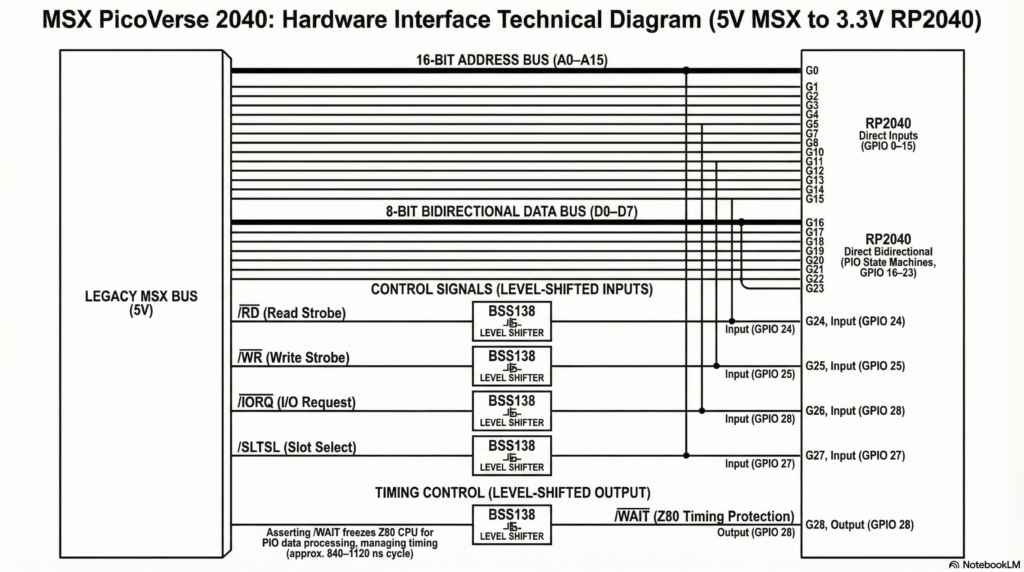
Two PIO state machines on PIO0 handle the memory bus:
- Read responder: When the MSX requests data from the cartridge, the PIO asserts
/WAITto freeze the Z80, captures the address, hands it to the firmware, and drives the data bus with the response before releasing/WAIT. - Write captor: When the MSX writes to the cartridge, the PIO captures the address and data and pushes them to the firmware for mapper logic.
For modes that need I/O port access (like the memory mapper, keyboard, joystick, and MIDI modes), two more state machines run on PIO1 to handle I/O bus cycles.
The RP2040 runs at 250 MHz, giving the firmware substantial time to look up ROM data while the Z80 is paused. The dual-core architecture is used extensively: one core handles bus traffic and mapper logic, while the other core runs USB host operations (TinyUSB stack) or audio processing.
Compatibility
The PicoVerse 2040 has been tested on:
- MSX1 systems (various brands)
- MSX2 systems
- MSX2+ systems
- Turbo R (Panasonic FS-A1ST, FS-A1GT)
Core ROM and Nextor workflows are validated across this range. The keyboard and joystick modes have the FPGA/integrated-PPI limitation noted above, but work well on all original hardware with discrete PPI and PSG chips.
Quick reference
| Task | Command |
|---|---|
| Build MultiROM image | multirom.exe (run in folder with .ROM files) |
| Build MultiROM + Nextor | multirom.exe -s (or -m for mapper mode) |
| Build single-ROM image | loadrom.exe MyGame.ROM |
| Build Nextor-only (USB drive) | loadrom.exe -s |
| Build Nextor + mapper | loadrom.exe -m |
| Build USB keyboard firmware | loadrom.exe -k |
| Build MSX-MIDI firmware | loadrom.exe -i |
| Build MIDI-PAC firmware | loadrom.exe -p |
| Build USB joystick firmware | loadrom.exe -j |
Common mistakes and how to avoid them
- Wrong RP2040 board: The standard Raspberry Pi Pico only exposes 26 GPIO pins. The PicoVerse 2040 needs a 30-GPIO variant. Check the BOM carefully.
- USB drive not detected: Try a different brand. Start with a small, simple drive and a single FAT16 partition.
- Mapper forcing: If a game does not boot, try forcing the correct mapper tag in the filename. The SHA-1 database catches most cases, but not all.
- Keyboard/joystick on FPGA MSX: These modes are incompatible with FPGA systems. Use original hardware only.
- Flashing issues: Make sure you enter BOOTSEL mode before connecting USB. If the
RPI-RP2drive does not appear, try a different USB cable.
Final thoughts
The PicoVerse 2040 is a single cartridge that can be a ROM launcher, a game cartridge, a disk interface, a keyboard adapter, a MIDI interface, a PSG-to-MIDI converter, or a joystick adapter. It costs about as much as one specialized MSX cartridge, and you can change what it does in under a minute by flashing a new UF2 file.
The project is open-source: PCB files, firmware source, and PC tools are all available in the repository. If you want something that modernizes your MSX setup without stacking cartridges, the PicoVerse 2040 is a strong option.
One cartridge, many roles, and a lot of room to tinker. Very much in the MSX spirit.
Really, really amazing Cristiano.
Do you know if there are a 3d printable cartridge?
Thanks for picoverse.
I am using the standard Patola/Konami cartridge case and that is the reason I haven’t created a 3D case for it.
Hello. Where can I find to buy this universal MSX cartridge board ?
I ordered from JLCPCB. You can do that, the gerbers are available on GitHub